This is an old revision of the document!
Publish a Mod
Once a mod is finished, you may consider to upload the mod to a place where other users may download it to use. The official mod browser is hosted by our partner mod.io. It allows players on all platforms (Win/Mac/Linux as well as PS5 and Xbox Series) to access mods directly within the game.
As fair play for everyone, there are a few basic rules to follow:
- Do not upload contents for which you do not have copyrights or permission to distribute yourself!
- Mods must be non-commercial and accessible in full for free to all users.
- Mods must not contain offensive or inappropriate content.
- Mods (aka User Generated Content) must comply with mod.io’s Term of Use.
- Mods must follow the instructions from our modding manual.
Urban Games allows the use of game files from the base game of Transport Fever 3 to create mods for Transport Fever 3 where neccessary. Please be aware that without explicit permission it is not allowed to use the game files for other games or projects.
Publish
Start the game and select the Mod Hub in the main menu. There is a My Mods tab, if there is at least one mod in your staging area. If not yet done, copy your mod to the staging_area subdirectory in the userdata directory. Usually it's located here:
C:\Program Files (x86)\Steam\userdata\<your Steam ID>\3493540\local\staging_area\
Select the mod that you would like to publish in order to see the mod details and add your final adjustments.
It is possible to adjust:
- 1 the name of the mod
- 2 the tags of the mod
- 3 the cover and additional images for the gallery
- 4 the visibility
- 5 the changelog message
Once you are ready publish your mod by clicking Upload at the bottomn left. Before upload, the game performs a validation pass to ensure the mod fulfills the requirements for Transport Fever 3. If it fits to the stricter console requirements, a version with adapted textures is prepared and automatically approved for PS5 and Xbox Series as well.
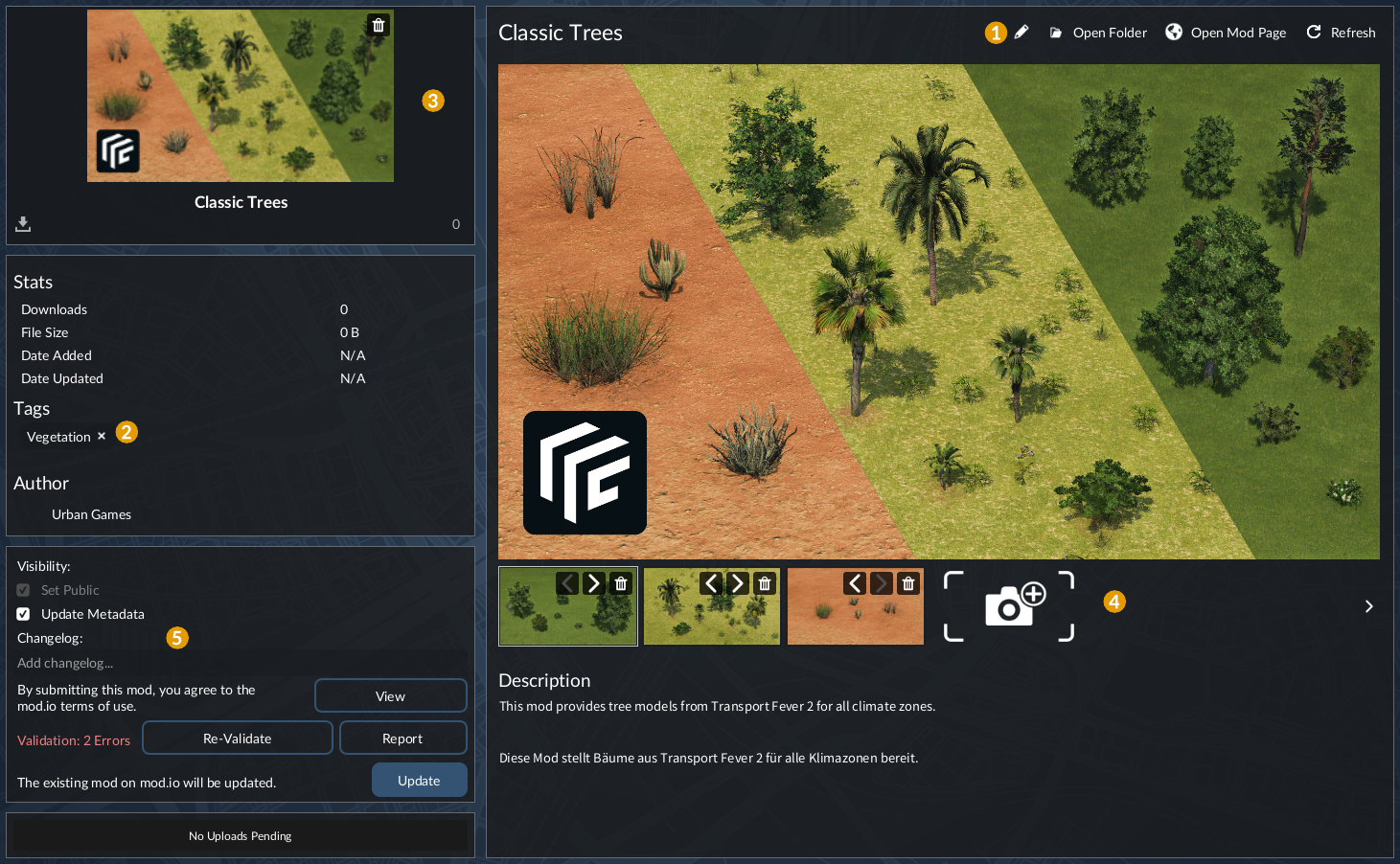
Customizing
Once the upload of the mod is complete, the entry will be opened on mod.io. Several edit functions are available by pressing the edit button in the top right corner.
In the General settings tab, there are four sub pages:
- Mod Profile name, summary, description, URL, listing image (cover/thumbnail), visibility setting and the selection of tags.
- Media Additional screenshots for the gallery section on the detail page of the mod.
- Files The history of uploaded files and the approval status for the different platforms.
- Dependencies References to other mods that are required and a list of mods that require your mod.
The Preview tab offers the possibility to give preview access to other players so they can beta test your mod. It is also possible to give preview access via url instead of manual approval of seperate user accounts.
It is possible to add other users as Team members of a mod. There are three roles to choose from:
- Administrator - Full access (includes editing the mod details themselves, as well as the team)
- Manager - Ability to manage mod details. Cannot edit team or delete files
- Moderator - Ability to moderate comments
All reports by players are listed in the Reports tab. It is possible to respond to the reporter to discuss additional details.
Download numbers, regional distribution of players and other statistics are collected in the Stats tab.
Update
To update an existing mod, simply open the Mod Hub in the main menu and go to My Mods again. Then select the mod to update. If you can read The existing mod on mod.io will be updated in the bottom left box next to an Update button, the mod.io item that should be updated is properly recognized. Otherwise, the reference might be missing.
Once a mod is uploaded to mod.io, a mod.io_fileid.txt file is generated in the _metadata folder of the mod. This file is required to find the right existing mod.io entry to update. If you lost the file, you may add it manually. The content is just the entry id that you may find in the info box on the right side of a mod detail page on mod.io.
Please increase the revision number in the mod.json before upload and provide a useful changelog message to inform the other players what changed.
If you modified title or description texts directly on mod.io, these changes will be overridden by the content from the mods name and description that is used in the modinfo.json! Thus you're advised to manually backup them elsewhere to restore them after the update.
Publish on other Platforms
In difference to mod.io, the upload to other mod hosters works manually and not through the game. Thus, the workflow may vary depending on the hoster. In most cases, the hosters have some terms of service which have to be accepted before uploading content.
For example, the mostly german community website has a download section. The filebase on transportfever.net can be accessed by everyone, so Win, MacOS and Linux users may install mods from there as well.
It is recommended to include the url in the modinfo.json to point to the download possibility. This helps other users to locate the source of missing mods.