Table of Contents
Terrain Generator Editor
The Terrain Generator Editor is a node based tool specifically made to edit terrain generators and material distributions. It is embedded in the Map Editor in the game itself after enabling it in the settings.luaby setting the experimentalTerrainGeneratorEditor property to true.
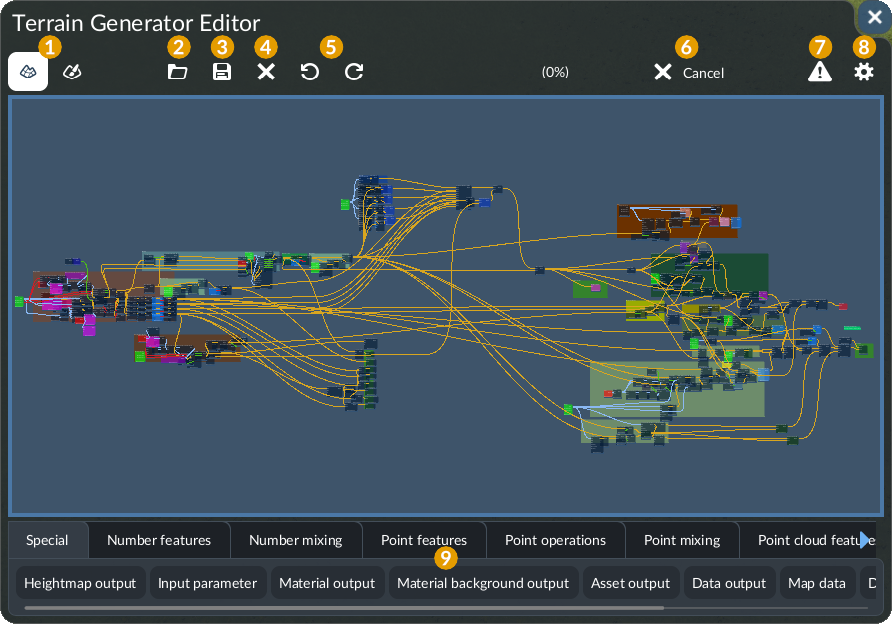
The user interface of the Terrain Generator Editor consists of three sections, a headbar, the main blueprint board and a catalogue with node types 9 at the bottom.
The headbar provides the following options:
1 a toggle to switch between terrain generator and material distribution mode.
2 open dialog to load an existing node tree
3 save dialog to save the node tree
4 close button to reset the terrain generator editor in the empty state
5 undo and redo buttons to revert or redo the last step
6 a cancel button to abort the current operation
7 validation button that triggers a validation based on the selected mode from 1
8 settings dialog to set a custom seed, preview map resolution and a parallelization factor for the preview computation.
Controls
To control the node graph blueprint board, you can use mouse and keyboard:
- Hold the right mouse button or use W, A, S and D to move the board.
- Use the mouse scroll wheel to zoom in or out.
- Use CTRL+C and CTRL+V to copy and paste nodes.
- Use R to jump back to the initial view.
- Use SHIFT and left mouse to selecte multiple nodes.
Nodes
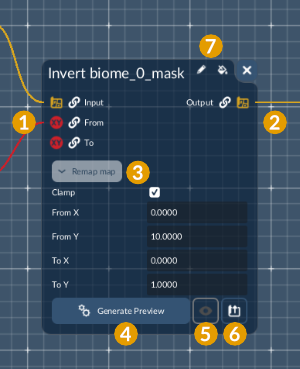
A node can be added by clicking on one of the buttons in the node catalog 9 at the bottom. The node consists of the following parts:
1 Input connectors that receive various kinds of data from other nodes. The symbols and colors code the different data formats:
- blue is a single number
- red is a pair of numbers, called point
- green is a list of pairs, called point cloud
- yellow is a full map
2 Output connectors provide data which can be forwarded to other nodes. Both input and output connectors have an unlink button to drop all existing connections.
3 Additional Parameters of the node are accessible by clicking the dropdown. For some nodes, as with From and To in the example on the right, it is possible to define a local parameter instead of connecting something to an input connector.
4 To try the generator up to the point of a certain node, use the Generate Preview button.
5 After calculation, the eye button provides a preview of the test run result.
6 This preview can be exported to .tga files with the export button.
7 Each node can be renamed and recolored.
Node Categories
The bottom menu provides all defined node types categorized in tabs:
- Special contains the nodes that are usually used at the begin and end of the node trees to manage inputs, parameters and outputs.
- Numbers contains nodes to generate and operate on single decimal number values.
- Points contains nodes to generate and operate on pairs of decimal number values.
- Point Clouds contains nodes to generate and operate on lists of pairs of decimal number values.
- Map Generators contains nodes to generate simple maps from raw data and textures.
- Noise Maps contains nodes to generate various noise patterns as maps.
- Map Operations 1 contains nodes to operate on existing maps.
- Map Operations 2 contains advanced nodes to operate on existing maps.
- Combine Maps contains nodes to combine multiple maps with and without masks.
- Ridges & Rivers contains nodes specifically made for the generation of ridges and rivers.
When hovering over a node type, a brief summary is displayed. When hovering over inputs and outputs, small hints are displayed as well.